The GTD flowchart, explained Every box in order, with one item followed through.
The GTD flowchart is a short list of questions you ask about every item in your inbox. Here is my drawing of it, what each box means, and one item walked through from start to finish.

I build Driftto, an iPhone app for getting a thought into the list app you already use. That is the first box of the Getting Things Done flowchart, so I wanted the rest of the chart clear too. The charts I found are old scans, pins and PDFs, so I drew my own. For the method in prose, see Getting Things Done, summarized.
In October 2026 I went through David Allen's own site, gettingthingsdone.com. It names the five steps and the choices at the Clarify step. It shows no flowchart, and it doesn't describe the two-minute rule, the weekly review or a Waiting for list. I explain those the way people commonly use them, in my own words. The drawing below is mine, not his diagram. GTD and Getting Things Done are registered trademarks of the David Allen Company.
The short answer
The GTD flowchart, from David Allen's method, is a decision path for every item in your inbox. Does it need an action? If not, trash it, keep it or park it. If so, find the very next action: under two minutes, do it now; otherwise delegate or defer it. Review every list weekly.
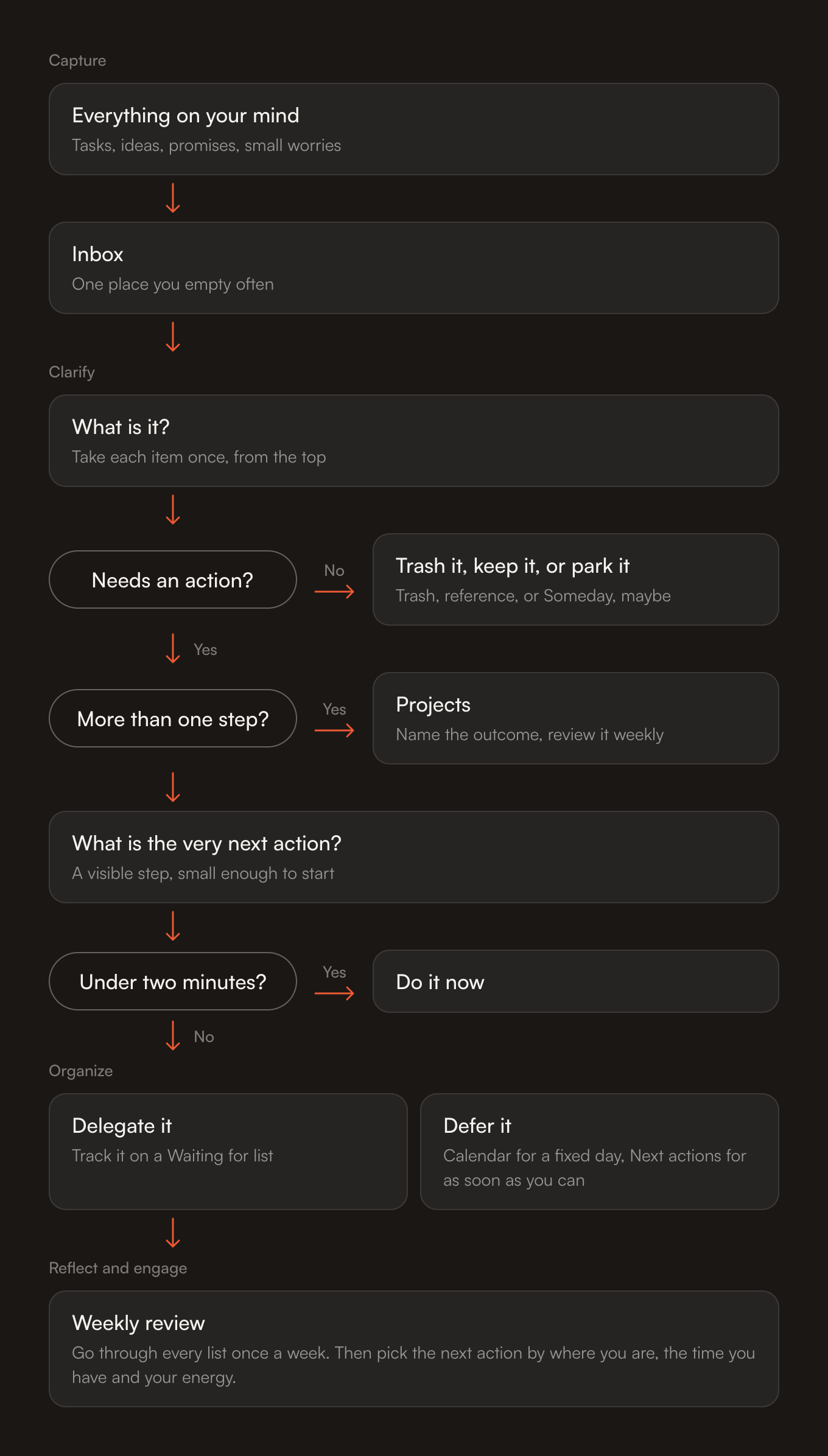
Capture: everything into one inbox
The chart starts with a box called Everything on your mind. It holds anything that has your attention: tasks, ideas, promises, small worries. At this point you don't judge any of it. You get it out of your head.
The second box is the Inbox: one place you empty often. It can be a notebook or an inbox in an app. The fewer inboxes you keep, the easier it is to empty them all. If you want prompts to shake loose what you forgot, I wrote a GTD trigger list.
Clarify: what is it, and what is the next step?
Clarify is the longest part of the chart, and the one that does the most work. You take each inbox item once, from the top, and ask what it is. Don't skip ahead to an easier item. The questions come in this order.
-
Needs an action?
The first fork. Can you do something about this item at all? A thought like "that cafe on Main Street looks nice" may be only a thought.
-
No: trash it, keep it, or park it
Trash what you don't need. Keep what you may need to look up later as reference. Park what you might want to do one day in Someday, maybe. Allen's site names the same three choices: trash, reference, or something to put on hold.
-
More than one step?
If the result takes more than one step, it is a project. The chart sends it to the Projects box: you name the outcome and review it weekly. Then it continues like any other item.
-
What is the very next action?
Every item, project or not, gets one next action: a visible step, small enough to start. "Mom's birthday" is not an action. "Look up three restaurants near her house" is.
-
Under two minutes?
The last question. If the next action takes about two minutes or less, do it now, because tracking it would cost more than doing it. If not, it goes on to Organize.
The two-minute question comes after the next action, not before, because you can only judge the time of a step once it is small and clear. Two minutes is a rule of thumb. If you are clearing a long inbox, it is fine to leave the quick ones for a later block.
Organize: delegate it or defer it
An item that gets here has a next action that takes more than two minutes. You have two choices, and the chart shows them side by side.
-
Delegate it
Someone else will do the step. Put a line on a Waiting for list: what you asked, who has it, and the day you asked. Without that line, you forget who owes you what.
-
Defer it: Calendar
Use the calendar only for what must happen on a fixed day or at a fixed time, such as a call at 3 pm. A wish to do something on Friday is not a calendar item.
-
Defer it: Next actions
Everything else you will do as soon as you can goes on a list of next actions. This is the list you work from.
Reflect and engage: the weekly review
The last box in my drawing joins two of the five steps. Reflect means going through every list once a week: the inbox, the calendar, the projects, Waiting for, Someday, maybe. Engage means choosing what to do now. In my drawing you pick the next action by where you are, the time you have and your energy. Allen's site names a weekly review as a trademark but doesn't describe it, so this is the common shape, not his wording. A form to follow is in a weekly review template.
One item, followed through the chart
Say your mother turns sixty next month and you want to take the family out for dinner. Here is that one item, step by step.
-
01
Capture
You think of it in the shower. You type "Mom's birthday dinner" into your inbox.
-
02
What is it?
At your next inbox pass, you take it from the top and look at it once.
-
03
Needs an action?
Yes. Someone has to plan and book this. If it were only an idea for next year, it would go to Someday, maybe.
-
04
More than one step?
Yes: pick a place, ask who comes, book a table, tell the family. So it is a project. You name the outcome, "Mom's birthday dinner is booked", and put it on your projects list for the weekly review.
-
05
What is the very next action?
"Look up three restaurants near Mom's house." You can see it and start it.
-
06
Under two minutes?
No, it takes about twenty. So it goes to Organize.
-
07
Delegate or defer?
You ask your sister to check which Saturday works for Dad: she gets that step, and you add a Waiting for line with her name. Your own step goes on your Next actions list, with no date, because nothing fixes it to a day.
-
08
Weekly review
On Sunday you open the project and see it still has a next action. The booking, once made, goes on the calendar for the day of the dinner.
A small item, such as replying with one line to a message, would have left the chart at the two-minute question: you do it now and it never reaches a list.
Common mistakes
-
Using the inbox as a to-do list
The inbox is a holding place. Items stay there until you clarify them, and the clarify pass is the part people skip.
-
Writing a project as an action
"Mom's birthday" on your Next actions list will sit there. Without a visible next step you have to think again each time you read it.
-
Applying the two-minute rule to the whole project
The question is about the next action. A project can't take two minutes, but the first step of one often can.
-
Parking everything in Someday, maybe
It becomes a graveyard. Park only what you might do one day, and skim it in the weekly review.
-
Skipping Waiting for
If you hand a step to someone and write nothing down, the loop stays open in your head, which is what the method tries to avoid.
-
Dropping the weekly review
Without it the lists go stale, you stop trusting them, and the thoughts move back into your head.
Where the chart lives in your apps
On paper: three sheets are enough. One for the inbox, one for next actions with a Waiting for section, one for projects. The calendar stays where it is.
In Todoist: its help says new tasks land in the Inbox when you don't add them to a project. Projects hold outcomes, and labels can carry next, waiting and someday, with filters that show one label at a time. I wrote the full setup in how to set up GTD in Todoist.
In Notion: a database holds items with properties such as a status and a date, and each view can filter, sort and group them, by Notion's help. So one database with a status property can stand for the inbox, next actions, waiting and someday, one view per box.
In Apple Reminders: I didn't find the details of Reminders on Apple's help pages I could open, so I make no claim about its features. A plain way to use it is one list per box of the chart: Inbox, Next actions, Waiting for, Someday. Whether that is enough depends on how many projects you run.
Which app suits the method best is a different question, and I compared them in the best apps for GTD.
Where Driftto fits
Driftto covers one box: the first one. It is an iPhone app that opens to a capture field with the keyboard up. You type or speak a thought, tap where it goes, and the thought is sent straight to the list app you already use: Todoist, Notion, Apple Reminders and others.
In Todoist it lands as a task in the project you picked at setup, or in the Inbox if you picked none. In Apple Reminders the whole note becomes the reminder's title in the list you chose. In Notion it becomes a page title in the database you chose. Everything after that, the clarify pass, Organize and the weekly review, you do yourself in your list app. Driftto only adds new items. It never reads, edits or completes what is already there.
Questions
What is the GTD flowchart?
It is a decision path for every item you collect in Getting Things Done. You ask whether it needs an action, whether it takes more than one step, what the very next action is and whether it takes under two minutes. Then you do it, delegate it or defer it.
Is this David Allen's own diagram?
No. GTD is David Allen's method, and the five steps are his. The drawing on this page is my own, built from those steps and from common practice. His site has no flowchart on the pages I read.
What is a next action in GTD?
A next action is the very next visible step on something, small enough to start. "Call the dentist" is a next action. "Teeth" is not. A project, which takes more than one step, always needs one next action.
What is the difference between a project and a next action?
A project is an outcome that takes more than one step, such as "Mom's birthday dinner is booked". A next action is the one step you can do now. The project goes on a projects list and the step goes on a next actions list.
What goes on a Waiting for list?
Steps you handed to someone else and want to track: what you asked, who has it, and when you asked. You check it in the weekly review and chase what is late.
Driftto is in the App Store now. The yearly plan starts with a free week.